Tutorial 4 of 9
Sheet nesting, grain and offcuts
Intermediate 10 min
Get the most out of every sheet — choose guillotine or MaxRects, set kerf and trim, lock the grain, read the yield, reuse offcuts and export DXF for your saw or CNC.
The Sheets view (key 5) shows one tab per material. Each sheet material is nested separately; solid stock and worktops get a 1D length optimisation instead.
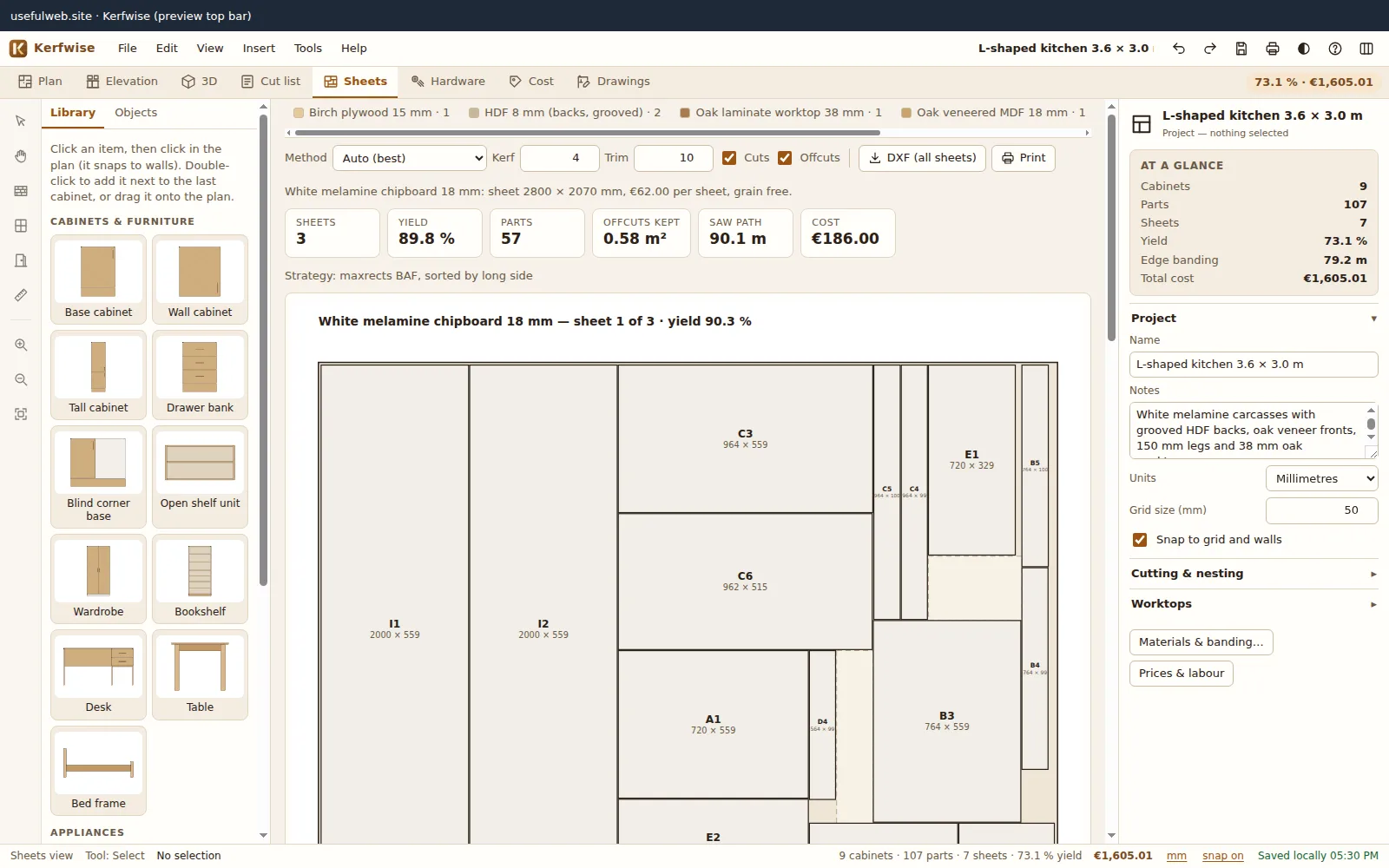
Method
- Guillotine (panel saw) — every cut runs edge to edge, so the layout can be cut on a panel or table saw. Dashed lines show the cut sequence.
- MaxRects (CNC) — tighter packing that is not always guillotine-cuttable; ideal for a router.
- Auto — tries both with many strategies and keeps the best: fewest sheets, then the largest single offcut, then guillotine.
How close to optimal?
Above the sheets Kerfwise shows the lower bound: the smallest number of sheets any layout could possibly use, from the total part area (each part plus one kerf) and from parts that are too big to share a sheet. The gap is sheets used − lower bound.
- Gap 0 → the layout is proven optimal (green note). No other program can use fewer sheets.
- Gap 1 or more → a perfect layout might save that many sheets — the bound is not always reachable. Switch Optimisation to Deep search: Kerfwise then tries hundreds of seeded variations (shuffled orders, other fit and split rules, other rotations) within a time budget and stops as soon as the bound is reached. The same seed always gives the same layout.
Shaped parts
Bottoms, tops and shelves of diagonal and L-shaped corner cabinets, angled ends, quarter-round shelves and one-piece L worktops are polygons. Kerfwise nests them by their bounding box in four orientations (two on grained material) and gives the empty notch of the L or the cut-off corner back to the free space, so small parts like rails and drawer sides fill it. The sheet drawing shows the true outline over a dashed box; yield counts the true area. Shaped parts are cut on a CNC router (see CNC G-code export) or with a track saw and jigsaw from the part drawing.
Kerf and trim
The kerf (default 4 mm) is the width of material your blade removes. The trim (default 10 mm) is cut off every sheet edge because factory edges are rarely clean. A quick sanity check: on a 2800 × 2070 sheet the usable area is 2780 × 2050, and with 4 mm kerf exactly 16 parts of 600 × 500 fit (4 × 4) — yield 82.8 %. A 17th part needs a second sheet.
Grain
Materials with grain (veneers, plywood, solid panels, wood-decor melamine) keep grained parts with their length along the sheet length: sides run vertically, drawer fronts horizontally. Parts without grain may rotate. You can switch a material’s grain on or off in Edit → Materials & edge banding….
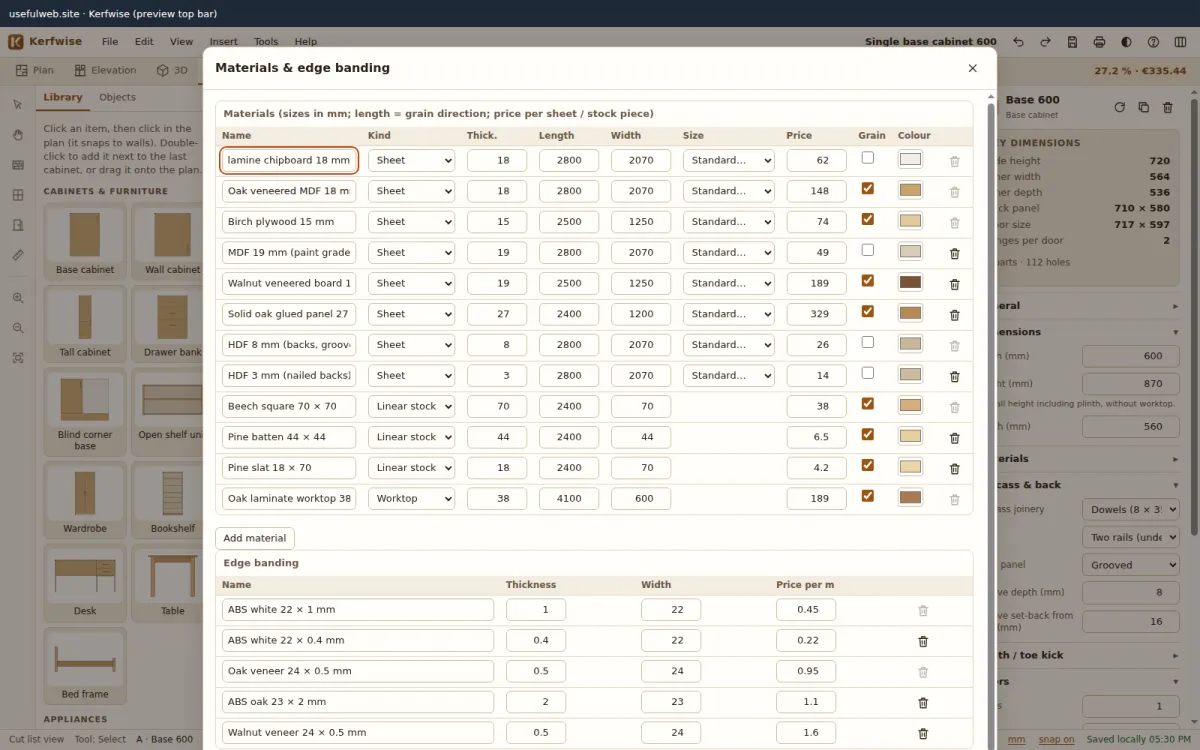
Standard sheet sizes (2800 × 2070, 2440 × 1220, 3050 × 1220, 2500 × 1250 …) are one click away in the Size column.
Yield and offcuts
- Yield = part area ÷ full sheet area, per sheet and per material.
- Offcuts kept are rectangles at least 300 × 100 mm (change the minimum in the project settings). Open Offcuts under a sheet to see their sizes and positions.
- Click a part on a sheet to select it everywhere (cut list, 3D, drawings).
Linear stock and worktops
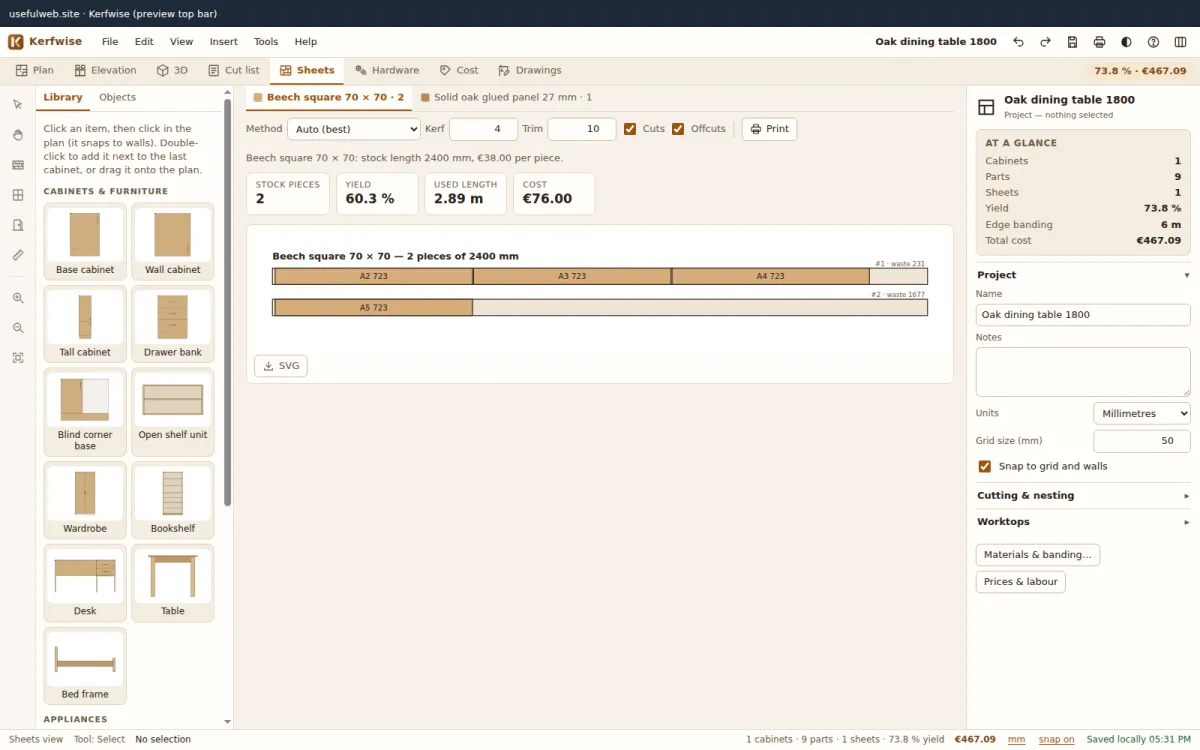
Legs, battens, slats and worktops are cut from lengths. Kerfwise uses first-fit decreasing with the kerf between pieces and the trim at both ends, and splits a worktop that is longer than the stock (with a warning that you need a joint).
Export
- DXF (all sheets) — R12 ASCII in millimetres with layers SHEET, PARTS, LABELS, OFFCUTS and CUTS; opens in practically every CAD/CAM program.
- SVG / PNG per sheet, or all sheets at once from the File menu.